
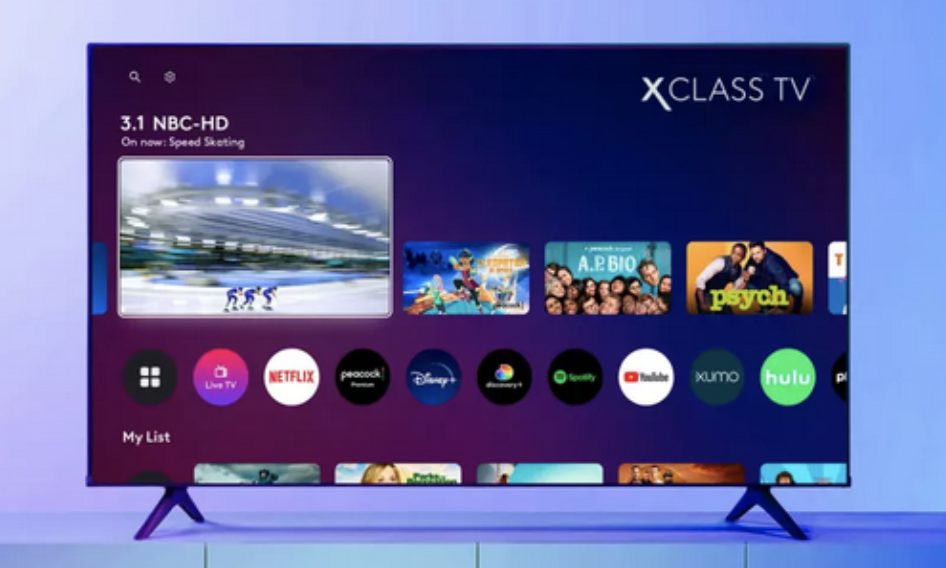

The Amazon Firestick is a go-to device for streaming enthusiasts, but pairing it with the Spectrum TV app can be challenging. This guide breaks down the essentials.
Gain seamless access to your favourite shows by following these straightforward steps to set up Spectrum TV on your Firestick, with troubleshooting tips included.
How to Use the Spectrum TV App on Fire TV
The Spectrum TV app is a versatile tool that allows users to access cable TV channels, on-demand content, and cloud DVR features directly on their streaming devices. While the app is compatible with platforms like Roku, Apple TV, and Android TV, its adaptability with the Amazon Fire Stick has been a particular point of interest for many users.
Installing the Spectrum TV App on Fire Stick
To begin your streaming journey with Spectrum TV on Fire Stick, the first step is to download the app from the Amazon App Store. Launch your Fire Stick and navigate to the home screen. Use the search function to type ‘Spectrum TV,’ then locate the app and choose ‘Download’ or ‘Get.’ This initiates the installation process.
Once the app has been successfully downloaded and installed, the next step involves logging into your Spectrum account. Open the Spectrum TV app on your Fire Stick, select ‘Sign In,’ and enter your Spectrum username and password. Follow any additional on-screen instructions to complete the sign-in process.
Troubleshooting Common Issues
Encountering issues with Spectrum TV on Fire Stick is not uncommon. To resolve typical problems, begin by rebooting your Fire Stick by unplugging it briefly and then plugging it back in. Also, verify and install any pending updates for apps or the Fire Stick system.
If the app doesn’t appear in your Fire Stick’s app library, check that the Amazon App Store is functioning and your device is internet-connected. Attempt to reinstall the Spectrum TV app from the store. If issues persist, sign out and then sign back into your Amazon account on the Fire Stick.
For problems where certain channels or features don’t work, ensure they are included in your Spectrum TV plan. Should issues continue, contacting Spectrum’s customer service for assistance may be necessary.
Exploring Alternatives if Issues Persist
Sometimes, despite following the steps, the Spectrum TV app may still not function as expected on the Fire Stick. In such cases, exploring alternative streaming devices could be beneficial. Roku is renowned for its compatibility with Spectrum TV, making it a viable substitute or complement to Fire Stick.
Apple TV also supports the Spectrum TV app, providing another option for users who prefer a different interface. Additionally, Spectrum TV can be accessed via its website or mobile app, granting users flexibility to stream on computers, smartphones, or tablets.
Maximising Your Spectrum TV Experience
Understanding how to leverage all features of the Spectrum TV app can significantly enhance your viewing experience. Make use of the cloud DVR and on-demand options to tailor your entertainment choices effectively.
Regularly check for updates for both the Spectrum TV app and Fire Stick firmware to ensure optimal performance. This proactive approach mitigates many common issues before they arise.
Engaging with Spectrum’s customer support is also advisable for unresolved matters, ensuring you maximise the functionality of your streaming service.
Conclusion
Navigating the integration of Spectrum TV and Fire Stick enriches your entertainment setup when done correctly. By adhering to the detailed steps and solutions provided, users can efficiently set up and troubleshoot their viewing experience. In cases of persistent issues, don’t hesitate to explore alternative solutions or seek support from Spectrum’s customer service.
Successfully navigating the steps outlined ensures an enjoyable Spectrum TV experience on Fire Stick. Persistent issues can be addressed by alternative solutions or customer support.
